How to Clean Laptop Screen: 5 Steps That Actually Work. I’ve gone through a few laptops over the years like an old MacBook Air, a Lenovo IdeaPad, and now a newer machine I use daily, and one thing I learned early on is that most people ruin their screens by cleaning them the wrong way. After a few close calls (including one smudge I made worse by wiping it with my shirt), I built a routine to clean my laptop screen properly, and I’ve stuck with it ever since. Here’s exactly what I do.
Choosing the Right Supplies to Clean My Laptop Screen
The first mistake I ever made was grabbing a paper towel because it was closest. Don’t do that! I learned the hard way that rough materials can leave micro-scratches you won’t notice until they catch the light just right.
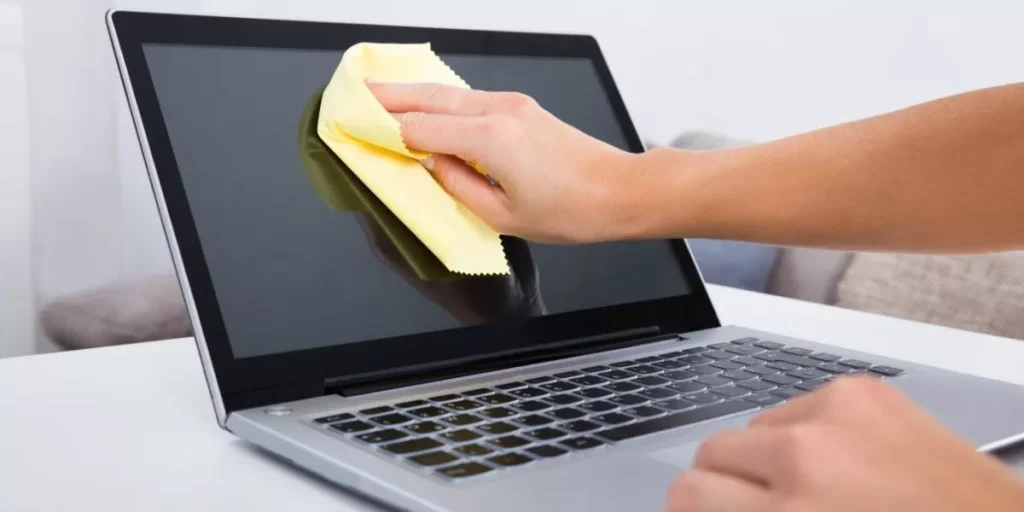
What I actually use now is a microfiber cloth and a gentle screen cleaner made for electronics. The microfiber cloth is soft enough that it lifts dust and fingerprints without dragging grit across the display.
When I pick a cleaning solution, I always check the label first. I avoid anything with alcohol or ammonia. I ruined the coating on an old monitor years ago with a generic glass cleaner, and I haven’t made that mistake since. Alcohol-free, ammonia-free is the rule I follow every time now.
How I Actually Clean My Laptop Screen
My process is always the same, no matter which laptop I’m cleaning:
- Power off and unplug first. I never clean a screen while it’s on it’s harder to see streaks, and there’s more risk if any moisture gets near the ports.
- Dampen the cloth, not the screen. I lightly dampen my microfiber cloth with water (sometimes a water-vinegar mix for tougher grime) and wring out any excess before it touches the screen.
- Wipe gently, back and forth. I use light pressure in smooth, even strokes rather than pressing hard on stubborn spots, pressing harder is what actually causes damage.
- Handle tough spots carefully. For anything that won’t lift with water, I switch to a proper screen cleaner or a diluted isopropyl alcohol solution, and I never spray it directly onto the screen. I mist the cloth instead, since liquid pooling at the edges is how it gets into the bezel.
- Dry with a clean section of the cloth. This last step is what stops streaks from forming as everything dries.
I clean my laptop screen this way roughly once a week, and it’s kept every screen I’ve owned including my current one free of the buildup that made older laptops look dingy after a year.
How I Prevent during Clean Laptop Screen from Damaging
Cleaning is only half the battle I’ve picked up a few habits that keep me from needing to fix damage in the first place.
I never set anything on top of a closed laptop. A stack of books on a laptop bag once left a faint pressure mark on an old screen, and that was enough to make me paranoid about it permanently.
I also stopped touching the screen with anything other than a soft cloth like no pens, no fingernails, nothing sharp near it, even briefly.
A screen protector made a real difference for me too. Once I started using one, I stopped worrying every time I tossed the laptop in a bag.
And I’m careful about how I open and close the lid, opening from the center instead of one corner puts less strain on the hinges, which matters more than people think if you want the screen sitting flush years later.
My Regular Maintenance Routine
Beyond the deep clean, I’ve built a few habits into my regular laptop use:
- I wipe the screen down weekly with a dry or lightly dampened microfiber cloth
- I keep harsh chemicals away from it entirely even ones marketed as “safe for electronics” if I don’t recognize the ingredients
- I adjusted my brightness and contrast to more moderate levels, partly for the screen’s lifespan and partly because it’s easier on my eyes
- I close the laptop when I’m not using it, instead of leaving it open and exposed
- I keep it out of direct sunlight and away from radiators or heating vents
Sticking to this has meant every laptop I’ve owned, from an older MacBook Air to my current setup has kept a clear, streak-free display well past the point most people start complaining about theirs.
Laptops I’ve Actually Cleaned This Way
Since I’ve used this exact routine across a few different machines, here’s where it’s held up best:
- Apple MacBook Air (M4, 2025): The Liquid Retina display shows every smudge instantly, so this routine gets used constantly
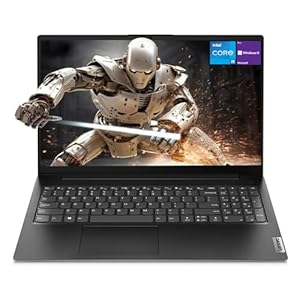
- Lenovo IdeaPad 1i: The touchscreen picks up fingerprints fast, and this method keeps it clear without leaving residue in the corners
- Acer Chromebook 315: A lower-maintenance screen, but the same weekly wipe-down keeps it looking new
You can browse the full lineup in our Laptops category if you’re due for an upgrade rather than a cleaning.
Frequently Asked Questions
Can I use regular glass cleaner to clean laptop screen?
No! most glass cleaners contain ammonia or alcohol, which can strip the screen’s protective coating. Stick to alcohol-free, ammonia-free solutions made for electronics.
How often should I clean laptop screen?
Once a week is a good baseline, or more often if you notice fingerprints and dust building up faster.
Is it safe to spray cleaner directly on my laptop screen to clean laptop screen?
No! always spray onto the cloth first, never directly onto the screen. Liquid can seep into the bezel and cause damage.
Do screen protectors actually help to keep laptop screen clean?
Yes! they act as a barrier against dust, scratches, and daily wear, and they’ve made a noticeable difference for me in keeping screens scratch-free.
Trending Products